Listed below are 24 Things (or small exercises) that you can do on the web to explore and expand your knowledge of the Internet and Web 2.0. Staff are encouraged to complete all 24 items on this list by January 15 in order to qualify for a reward. (Note: Details about each task will be activated weekly with posts related to each item.)
Week 1: Introduction
1. Read this blog entry and found out about the program.
2. Discover a few pointers from lifelong learners and learn how to nurture your own learning process.
Week 2: Blogging
3. Set up your own blog and add your first post.
4. Explore the online resources offered by Linebaugh Public Library System.
Week 3: Photos & Images
5. Explore Flickr and learn about this popular image hosting site.
6. Have some Flickr fun and discover some Flickr mashups and 3rd party sites.
7. Explore TeVA or the Nashville Public Library website to see what kinds of images are archived online.
Week 4: RSS & Newsreaders
8. Learn about RSS feeds and set up your own Bloglines newsreader account.
9. Locate a few useful library related blogs and/or news feeds.
Week 5: Play Week
10. Play around with an online image generator.
11. Take a look at LibraryThing and catalog some of your favorite books.
12. Roll your own search tool with Rollyo.
Week 6: Tagging, Folksonomies & Technorati
13. Learn about tagging and discover a Del.icio.us (a social bookmaking site)
14. Explore Technorati and learn how tags work with blog posts.
15. Read a few perspectives on Web 2.0, Library 2.0 and the future of libraries and blog your thoughts.
Week 7: Wikis
16. Learn about wikis and discover some innovative ways that libraries are using them.
17. Add an entry to the new LPLS staff wiki.
Week 8: Online Applications & Social Networking
18. Take a look at some online productivity (word processing, spreadsheet) tools.
19. Learn about social networking sites such as MySpace and Facebook.
20. Explore any site from the Web 2.0 awards list, play with it and write a blog post about your findings.
Week 9: Online Video & Audio
21. Discover YouTube and other sites that allow users to upload and share videos.
22. Take a look at the videos available through MyLibraryDV and the audio titles available from R.E.A.D.S. Find out how to download video and audio from the library’s website.
23. Discover some useful search tools for locating podcasts.
The Finish Line!
24. Summarize your thoughts about this program on your blog.

mp3 player update
 Ooops! It seems that the MP3 player I've been promoting as the prize for this Learning 2.0 program is not the MP3 player we actually ordered. What you'll actually be getting is this:
The Creative MuVo V100 MP3 player features 2GB of storage (about 1000 songs worth) and a direct USB connection (no extra cords needed). Plug your MuVo into the computer USB port and simply drag and drop your music or files directly into your MuVo! This player supports MP3 and WMA formats and can be used with R.E.A.D.S. audiobooks. It also has a built-in voice recorder, a backlit LCD display, adjustable EQ, and lyrics display. It can also be used for file/data storage, like a USB flash drive. It operates on a standard AAA battery, which provides about 18 hours of continuous playback and comes with earbuds.
#24 The End? Or Just The Beginning?
 Wow! Congratulations!! You’ve reached the 24th thing! Be sure to give yourself a pat on the back for completing the program. Your reward for completing this learning journey before the January 15th deadline is an awesome MP3/video player. (Details about when we'll hand out the prizes will come in a later email.)
 But first, I ask for one last discovery post. For your last and final exercise for this program, please reflect on your learning journey and post a few thoughts. Here are some questions to prompt you if you're drawing a blank...
- What were your favorite discoveries or exercises on this learning journey?
- How has this program assisted or affected your lifelong learning goals?
- Are there any tools or programs you plan to continue using after this program?
- Were there any unexpected outcomes from this program that surprised you?
- What could we do differently to improve upon this program’s format or concept?
- And last but not least... If we offered another discovery program like this in the future, would you again chose to participate?
In closing, I want to thank each and every one of you for participating in this journey. Technology is changing so fast these days that it's important for libraries (and staff members) to keep in the know about these new Web 2.0 tools since so many of these technologies provide new channels for information to travel across and new opportunities for libraries to reach out and enhance services. You don't have to be experts with these new tools and websites, but as those of you that have completed Learning 2.0 have learned, a little bit of knowledge and exposure can go a long way.
Discover More
If this program feels like just the tip of the iceburg, if you want to keep traveling down the path of self-discovery, then I encourage you to explore Learning 2.1. The PLCMC library staff developed this new program as a continuation of the original Learning 2.0 program. Its goal is to help introduce news finds and discoveries that may be of value to libraries, combining 21st century skills with lifelong learning. Like the original program, participants are encouraged to follow along with their own blogs. Read through the blog to see what participants have discovered so far, or sign up for the RSS feed, or subscribe by email. Another place to check out is LibraryStream, a blog about social networking libraries, which is presenting a Learn More series. This self-paced discovery series is for library staff interested in venturing out on the social web. You may find some repetition (from places we've covered in our Learning 2.0 program), but you might still find it worthwhile.
Whatever you do: keep learning!
Whatever you do: keep learning!
#23 Podcasts, Smodcasts!
 The word podcast is used to refer to a non-musical audio or video broadcast that is distributed over the Internet. What differentiates a podcast from regular streaming audio or video is that the delivery method for podcasts is often done automatically through RSS.
In 2005, "podcast" was named the "word of the year" by New Oxford American Dictionary and with the growth of podcasting since then, it's easy to see why.
Podcasts take many forms, from short 1-10 minutes commentaries (like the ones by Helene Blowers that we've listened to in this Learning 2.0 program) to much longer in-person interviews or panel group discussions. Several traditional broadcast media outlets (such as NPR and BBC) also offer podcasts. There’s a podcast out there for just about every interest area and the best part about this technology is that you don’t have to have an iPod or a MP3 player to access them. Since podcasts use the MP3 file format, a popular compressed format for audio files, you really just need a PC (or portal device) with headphones or a speaker.
iTunes, the free downloadable application created by Apple, is the directory finding service most associated with podcasts, but if you don’t have iTunes installed there are still plenty of options.
For this discovery exercise participants are asked to take a look at some popular podcast directory tools. Do some exploring on your own and locate a podcast that is of interest to you. Once found, you can easily pull the RSS feed into your Bloglines account as well, so that when new casts become available you’ll be automatically notified of their existence.
Discovery Resources
Listen to PLCMC's podcast about podcasts.
Watch the What is a Podcast? video tutorial.
There are many, many podcast directories and finding tools out there. Here are just four of the more popular ones that, unlike iTunes, don't require a software download:
Discovery Exercise
- Take a look at one or two of the podcast directories listed and see if you can find a podcast that interests you. See if you can find some interesting library-related podcasts, like book review podcasts or library news.
- Add the RSS feed for at least one podcast to your Bloglines account
- Create a blog post about your discovery process. Did you find anything useful here?
Discover More
What? You want to learn how to be a podcaster too? Here are some additional resources you can use to learn how to create podcasts.
- All the World's a Podcast - how-to article by WebMonkey
- Beginner's guide to Podcasts & Creating Podcasts
- How to podcast tutorial
#22 Downloading Audiobooks & Videos
Congratulations on making it this far! I'm happy to tell you, the end is in sight. Just a couple more exercises to complete, and you could own a fancy new MP3.Once you have your new MP3 player, you'll probably want to put it to use. That's why this Thing explores the downloadable audiobook options available at the LPLS website. While we're there, we'll also take a look at downloadable videos. Anyone with a LPLS library card can download ebooks, audiobooks, and videos to their personal computer and even transfer audiobooks onto their own MP3 player for listening on-the-go!
Our library system has access to ebooks and audiobooks through R.E.A.D.S. (Regional eBook & Audiobook Download System), a service funded by the State of Tennessee and the Institute of Museum and Library Services and powered by OverDrive. R.E.A.D.S. offers popular fiction titles, consumer nonfiction, and selections for children and young adults. For this discovery exercise, you merely need to familiarize yourself a bit with the structure of the R.E.A.D.S. site and get an idea of the types of titles you can find here. Take a look around and locate a few titles of interest.
We also offer downloadable videos through MyLibraryDV. LPLS has a subscription to this service. MyLibraryDV gives you 24/7 access to hundreds of great video programs, including classic movies, independent films from the Film Movement series, PBS Kids shows, and popular television programs on lifestyle, health, travel, and cooking. The cost to our patrons to be able to access DVD-quality video on demand? Free. The second part of this exercise is to simply familiarize yourself with the MyLibraryDV service.
Discovery Resources
Explore the following resources, as needed, to learn more about these services:
- Watch the Download Digital Media Guided Tour tutorials to learn more about how to use R.E.A.D.S. (Each tutorial is 3 minutes or less.)
- Read through the Quick Start Guide (including the system requirements and necessary software) and other Help options available at R.E.A.D.S.
- Watch the MyLibraryDV commercial (Windows Media Player required).
- Read the MyLibraryDV system requirements and the MyLibraryDV FAQ.
- NOTE: Be sure you know how to sign in to R.E.A.D.S and how to get started with MyLibraryDV (item 2 in the FAQ), so you can instruct patrons on how to access these services. A library card is required for either service.
Discovery Exercise
- Visit the R.E.A.D.S. site and explore the thousands of ebook and audiobook titles available. Try searching for a specific title or author to see if it is available.
- Browse the list of videos available from MyLibraryDV (PDF).
- Write a blog post about your findings. Did you locate any titles at R.E.A.D.S. that you might want to download once you have your player? Were you surprised by anything you discovered in this exercise?
Discover More
You don't have to wait until you have your MP3 player to enjoy R.E.A.D.S. You can download books to listen to (or read) on your home computer; some books also may be burned to CD. You can also start downloading videos today from MyLibraryDV.
If you're up to the challenge, sign in to either site, download and install the necessary software, download a book or video, and enjoy! Be sure to blog about your experience.
If you don't have a home computer, or if you're unable to download and install the software to your staff computer, you can use the R.E.A.D.S. download kiosk at Linebaugh Library. This kiosk lets library patrons download free audiobooks to their MP3 or WMA audio player using the library's connection.
#21 You Too Can YouTube
YouTube is a popular video sharing website where users can upload, view and share video clips. This flash based service is home to a wide variety of music video, movie and tv clips. It has also become home to amateur videos and is a source for video blogging. In August 2006, The Wall Street Journal reported that YouTube was hosting about 6.1 million videos (requiring about 45 terabytes of storage space). According to Wikipedia, as of November 2007, a search of YouTube returned 52.7 million videos.
We've already used YouTube to access some videos in some of our previous exercises. Do some searching around YouTube yourself and see what the site has to offer. You'll find everything from 1970s TV commercials to instructional videos to skateboarding dogs. You can also find library dominos, Super Librarian, a day in the life of a library, and other library related videos. Of course, like any free site you’ll also find a lot stuff not worth watching too. But that doesn’t mean you shouldn’t explore and see for yourself what the site has too offer.
Discovery Exercise
 Other popular video hosting sites:
We've already used YouTube to access some videos in some of our previous exercises. Do some searching around YouTube yourself and see what the site has to offer. You'll find everything from 1970s TV commercials to instructional videos to skateboarding dogs. You can also find library dominos, Super Librarian, a day in the life of a library, and other library related videos. Of course, like any free site you’ll also find a lot stuff not worth watching too. But that doesn’t mean you shouldn’t explore and see for yourself what the site has too offer.
Discovery Exercise
- Explore YouTube & find a video worth adding as an entry in your blog.
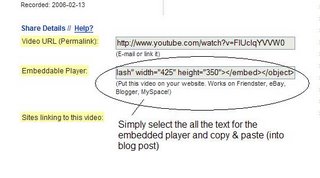
- Create a blog post about your experience. What did you like or dislike about the site and why did you choose the video that you did? Can you see any features or components of the site that might be interesting if they were applied to library websites? Be sure to include a link to the video you selected. Or, if you're up to a challenge, try placing the video inside your blog using the copy and paste code for the for "Embeddable Player.” Note: you'll need to use Blogger's Edit HTML tab when pasting this code.
 Other popular video hosting sites:
#20 Discovering Other Web 2.0 Tools
Throughout the course of this Learning 2.0 program we’ve explored just a small sampling of these new internet technologies and websites that are empowering users with the ability to create and share content. But, given time, there are so many more we could explore. There are currently hundreds of web 2.0 tools available with only a handful emerging as market dominators. And although time will only tell which of these new collaborative, social networking and information tools will remain on top, one thing is for sure, they're not going to go away (at least anytime soon).
For this discovery exercise, participants are asked to select any site from this list of Web 2.0 Awards nominees and explore it. With so many to choose from, it might be handy to first select a category that interests you (like Books or Personal Organization) and then simply select a tool/site to explore. Be careful to select a tool that is Free and that doesn't require a plug-in or download. The majority of these free, so this shouldn’t be a problem.
Discovery Exercise
For this discovery exercise, participants are asked to select any site from this list of Web 2.0 Awards nominees and explore it. With so many to choose from, it might be handy to first select a category that interests you (like Books or Personal Organization) and then simply select a tool/site to explore. Be careful to select a tool that is Free and that doesn't require a plug-in or download. The majority of these free, so this shouldn’t be a problem.
Discovery Exercise
- Select any site/tool from the list of Web 2.0 Awards nominees. (If you prefer to select from just the winners, here’s a link to the short list.)
- Explore the site you selected.
- Create a post about your discovery. What did you like or dislike about the tool? What were the site’s useful features? Could you see any applications for its use in a library setting?
#19 Social Networking
 Our patrons are using MySpace, both in our computer labs and at home. This shouldn't come as any surprise to you. According to Alexa Online, a company that provides statistics on web traffic, MySpace is the 3rd most popular website in the United States (behind Google and Yahoo) and the 6th most popular website worldwide. Despite this, you may not be completely sure what exactly MySpace is or what it has to do with our library.
MySpace is a free interactive social networking site that connects people, ideas, videos and music via user submitted information. Social networking sites have become some of the most popular destinations on the Internet -- more than 200 million people worldwide use MySpace. They function as gathering places, promotional tools, and virtual hangouts for millions of users all over the world.
How do they work? There are two basic principles that account for their success:
- They make it easy for users to create a customized page of their own where they can express their personality
- Users can link their sites to their friends, allowing them to create a quantifiable manifestation of their social network.
One of the most underrepresented populations in libraries is young adults. Conveniently enough, the overwhelming majority of young adults in this country are members of MySpace, Facebook, or both. Many libraries across the country have established a presence on MySpace and/or Facebook to take advantage of this fact.
Discovery Resouces
Why are social networking sites so popular? Let's ask the folks at Common Craft for an explanation of Social Networking in Plain English.
Check out this list of social networking sites at Wikipedia, to see the variety of sites available.
Explore how these public libraries are using social networking sites:
- River Rouge Public Library (Michigan) on MySpace
- Austin Public Library (Texas) on MySpace
- Birmingham Public Library (Alabama) on MySpace
- Hennepin County Library (Minnesota) on MySpace and Facebook (link to news post; you must have a Facebook account to view their profile)
- Bangor Public Library (Maine) on MySpace and Facebook
- Find other libraries listed the the Library Success Wiki.
Discovery Exercise
Visit one or more of the following social networking websites. If you already belong to one or more social networking sites, try visiting one you're not familiar with.
- MySpace: The most popular social networking site on the planet, frequented by millions of teens and twentysomethings, and used by bands as a marketing tool
- Facebook: Originally designed for use on college campuses, skews to a slightly older audience, and features a cleaner, more customizable interface
- LinkedIn: Designed for professionals to post resumes and build contacts.
- Eons: Social networking and activity sharing geared toward ages 50+.
- TeeBeeDee: Network and connect with other people ages 40+.
- Bookspoke: A social networking site for readers and writers.
Discover More
If you're up to the challenge...
- Create a profile for yourself at one of the sites listed above. (You don't have to use your real information if you're concerned about privacy.)
- Once you've created your profile, explore the site a little more. Search for somebody -- a friend, a coworker, a former classmate, a famous author, or even one of the current presidential candidates. Add them to your friends list.
- Create a blog post about your experience. Have your thoughts or opinions changes about the site, now that you've seen it from a member's perspective?
- Libraries in Social Networking Software (by Meredith Farkas, Distance Learning Librarian at Norwich University)
- Is MySpace Scary? (by Stephen Abram of SirsiDynix)
- MySpace for Parents (by Matt Gullett, Technology Education Librarian with PLCMC, includes downloadable brochure)
- The Death of Email (from Slate.com)
#18 Web-Based Apps Increase Productivity
Online productivity web-based applications (think word processing and spreadsheets) have exploded over the past few years -- and for good reasons! These powerful applications provide users with the ability to create and share documents over the Internet without the need of installed desktop applications. Some experts speculate that this emerging trend may mean the death of Microsoft Office and other software-based productivity tools, while others think web-based applications have their place, but not in the office. But no matter which side of the office suite platform you side with, on this both sides seem to agree: web-based apps have something to offer.
One large benefit to web-based applications it that they eliminate the need to worry about different software versions or file types as you email documents or move from PC to PC. Another bonus is that they easily accommodate collaboration by allowing multiple users to edit the same file (with versioning) and provide users the ability to easily save and convert documents as multiple file types (including HTML and pdf). You can even use many of these tools, such as Zoho Writer and Google Docs, to author and publish posts to your blog. It’s this type of integration with other web 2.0 tools that also makes web-based apps so appealing.
For this discovery exercise, participants are asked to take a look at one of the web-based word processing tools listed below, create a simple document, and then document your discoveries in your blog. If you're up to the challenge, you might even export your document as an HTML file or publish it to your blog.
With Zoho, Google Docs, and other web-based applications, the possibilities are endless.
Discovery Resources
Read Helene Blower's comments about why Zoho Writer is so useful. (Note that these options are true of most of the applications listed below.)
Watch Google Docs in Plain English by those ever-helpful folks at Common Craft, to see how you can use Google Docs to create, share, and collaborate on documents.
Discovery Exercise
Discover More
If you're up for the challenge, try using Google Docs' or Zoho's "publish" options to post to your blog.
If you are still wondering "Why would I be interested in online office software?" the article "Why you need a Web Office" offers some additional thinking on the subject
One large benefit to web-based applications it that they eliminate the need to worry about different software versions or file types as you email documents or move from PC to PC. Another bonus is that they easily accommodate collaboration by allowing multiple users to edit the same file (with versioning) and provide users the ability to easily save and convert documents as multiple file types (including HTML and pdf). You can even use many of these tools, such as Zoho Writer and Google Docs, to author and publish posts to your blog. It’s this type of integration with other web 2.0 tools that also makes web-based apps so appealing.
For this discovery exercise, participants are asked to take a look at one of the web-based word processing tools listed below, create a simple document, and then document your discoveries in your blog. If you're up to the challenge, you might even export your document as an HTML file or publish it to your blog.
With Zoho, Google Docs, and other web-based applications, the possibilities are endless.
Discovery Resources
Read Helene Blower's comments about why Zoho Writer is so useful. (Note that these options are true of most of the applications listed below.)
Watch Google Docs in Plain English by those ever-helpful folks at Common Craft, to see how you can use Google Docs to create, share, and collaborate on documents.
Discovery Exercise
- Select one of the web-based word processing applications listed below, and register for an account at that site. (Note: you can use your existing Google account -- what you use for Gmail or Blogger -- for Google Docs.)
- Google Docs - Google offers word processing, spreadsheet, and presentation tools. Learn what you can do with Google Docs.
- Zoho Writer - Zoho also offers online spreadsheet, presentation, web conferencing, project management, database, organizer, and other tools. Learn what you can do with Zoho Writer.
- Writeboard - word processing, with revision tracking.
- ThinkFree Office - word processing, spreadsheet, and presentation tools.
- gOffice - word processing, presentation, spreadsheet, and desktop publishing tools; also has a version designed for iPhones.
- Create a couple of test documents.
- Try out the features offered and write a blog post about your discoveries.
Discover More
If you're up for the challenge, try using Google Docs' or Zoho's "publish" options to post to your blog.
If you are still wondering "Why would I be interested in online office software?" the article "Why you need a Web Office" offers some additional thinking on the subject
#17 Creating the LPLS Staff Wiki
 Many of the activities we've done during the Learning 2.0 program have been just for fun, but let's not forget that most of the Web 2.0 technologies we're learning about can be practical and useful tools for libraries. As we saw in Thing #16, libraries are using wikis in several ways to share and collaborate among staff, with patrons, or with the library community as a whole.
This week, we're going to work together to create a wiki for LPLS staff. In this exercise, we're going to learn more about how wikis work, how to use a wiki, and then you're going to add a contribution to the new LPLS Staff Wiki, using PBWiki (a free, wiki-hosting site).
Discovery Resources
- Take a tour of PBwiki to see some of the features PBwiki has to offer and how to use the Point and Click editor (which works like the formatting toolbar in Microsoft Word).
- PBwiki has several other videos at YouTube about using PBwiki, getting started, and using the text editor.
- Read the Editing FAQ or other PBwiki FAQ topics.
Discovery Exercise
You can find the LPLS Staff Wiki at lpls.pbwiki.com. We've started the wiki with 3 sections:
- Circulation Manual - This section will include articles from the Circulation Manual, policies and practices and instructions on all things circ.
- Services Available - This section will be a list of all the services and resources available at any LPLS branch.
- How To - This section will include miscellaneous how-to articles and branch-specific instructions on how to accomplish various tasks.
For this exercise, your goal is to post 1 or more articles to one of these 3 sections. Because this wiki contains privileged information, you will need a password to access it; check your email for that password. You'll be asked to enter your name and email address; that's so we can keep track of who made which additions and edits to pages within the wiki.
If you want to get some practice before uploading your page, visit the Sandbox. ("Sandbox" is the term that wikis often use to describe the area of a website that should be used for pure play.) You can make any changes you want to that page, or just play around with the editing tools.
Ready to get your feet wet? Your choices for this exercise are:
- post 1 long article from the Circulation Manual (1/2 page or longer)
- post 2 short articles from the Circulation Manual (less than 1/2 page)
- post 1 article to the How To section
- post the Services Available list (the entire section should be 1 wiki page)
We've already created the separate "chapters" and article lists for the Circulation Manual within the wiki. To add an article:
- From the front page, click the link for the Circulation Manual (in the Sidebar Navigation Menu), then click on the name of the section where your article will appear. (ex: Holds)
- Click the "Edit Page" button.
- Highlight the name of the article you plan to add and click “Link” on the menu bar. Check the defaults:
- Link Type = WikiPage
- Link to wiki page = new page
- New page name = your article name
- Link text = your article name
- Click OK. Then click Save. You’ll be taken back to the normal page view. The text for which you just created a link should now be in blue with a red-dashed underline.
- Click on the link for your article. Check “No Template” and click Create New Page.
- Now you’re ready to paste in the text for your article. As much as possible, please keep the formatting the same (ex: bold & italic text).
- For increased on-screen readability, please hit enter at the end of each list item (to put a blank line between each item in the list).
- Anywhere there is a reference to a section title (ex: see Overdues for more information), create a link to that section. (We will create links between articles after all the articles have been uploaded.)
- Highlight the text and click the Link button.
- Under "Link to wiki page" select the name of the page you want to link to, then click OK.
- Be sure to click Save when you're finished editing your page.
- Here's an example of an article that's already been created: Checking in Materials. (Note that you will need to be logged in to the wiki before you can access this page.)
You can add something to the How To section. We have listed several suggested articles, many of which we already have typed-up instructions for. You can find some of these within Everyone/Circulation/Circulation Manual or Everyone/Circulation/Smyrna/Instructions. Copy and paste, following the directions above. Or you can retype instructions that are posted in your department but are not saved on the server. Or you can write up new instructions.
Once you've added something to the wiki, create an entry in your blog with a link to the page(s) you created. Try searching for topics in the wiki and see what results you get. Then, share your thoughts on this project: How useful do you think this wiki will be to you? What other topics/sections would you like to see added to the wiki? What other ways could our library system use wikis?
Discover More
Our goal is to post the entire Circulation Manual to the wiki site. If you do the math, you'll see that we have more articles than we do staff participating in the Learning 2.0 program. So your assignment, should you choose to accept it, is:
- Post additional articles.
- Edit already posted articles. Fix mistakes, add screenshots or other images, add links to other articles, add a scenario / example, etc.
- Most importantly: Recruit your non-Learning 2.0 co-workers to get involved and contribute to the wiki.
#16 What's in a Wiki?
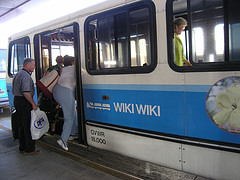 A wiki is a collaborative website and authoring tool that allows users to easily add, remove and edit content. Wikipedia, the online open-community encyclopedia, is the largest and perhaps the most well known of these knowledge sharing tools. With the benefits that wikis provide, the use and popularity of these tools is exploding.
(But what's "wiki" mean, you ask? Wiki is the Hawaiian word for fast, like the Hawaiian airport shuttle bus you see at the right. The word was brought to the Web in the 90s to describe a website that was easily and quickly editable by its users.)
Some of the benefits that make wikis so attractive are:
- Anyone (registered or unregistered, if unrestricted) can add, edit or delete content.
- Tracking tools within wikis allow you to easily keep up on what been changed and by whom.
- Earlier versions of a page can be viewed and reinstated when needed.
- Users do not need to know HTML in order to apply styles to text or add and edit content. You don't have to know how to make a webpage in order to contribute.
Discovery Resources
Use these resources to learn more about wikis:
- PCLMC's podcast on wikis
- Wiki’s: A Beginner’s Look – an excellent short slide presentation that offers a short introduction and examples.
- What is a Wiki? – Library Success wiki presentation.
- Using Wikis to Create Online Communities – a good overview of what a wiki is and how it can be used in libraries.

Discovery Exercise
For this discovery exercise, you are asked to take a look at two or more library wikis and blog about your findings. Here’s a few examples to get you started:
- SJCPL Subject Guides – a pathfinder wiki developed by the St. Joseph County Public Library system
- Book Lovers Wiki - developed by the Princeton Public Library
- Library Success: A best practices wiki
- The Bull Run Library wiki - a public library wiki (also a Learning 2.0 participant)
- Library Instruction Wiki - with handouts, tutorials, and more
- Other library wiki examples
#15 On Library 2.0 & Web 2.0...
 Library 2.0 is term used to describe a new set of concepts for developing and delivering library services. The name, as you may guess, is an extension of Web2.0 and shares many of its same philosophies and concepts including harnessing the user in both design and implementation of services, embracing constant change as a development cycle over the traditional notion of upgrades, and reworking library services to meet the users in their space, as opposed to ours (libraries).
Many have argued that the notion of Library 2.0 is more than just a term used to describe concepts that merely revolve around the use of technology; it also a term that can be used to describe both physical and mindset changes that are occurring within libraries to make our spaces and services more user-centric and inviting. Others within the profession have asserted that libraries have always been 2.0: collaborative, customer friendly and welcoming. But no matter which side of the debate proponents fall, both sides agree that libraries of tomorrow, even five or ten years from now, will look substantially different from libraries today.
Discovery Resources
OCLC Next Space Newsletter – Web 2.0: Where will the next generation Web take libraries?
Five Perspectives:
- Away from Icebergs
- Into a new world of librarianship
- To more powerful ways to cooperate
- To better bibliographic services
- To a temporary place in time
Discovery Exercise
- Read two or three of the perspectives on Library 2.0 from the list above.
- Create a blog post about your thoughts on any one of these? Library 2.0 - It's many things to many people. What does it mean to you?
Discover More
Here are a few additional articles and resources about Library 2.0:
- Wikipedia – Library 2.0
- Library 2.0 Discussions (list of great references from Wikipedia)
- Web 2.0, Library 2.0 and Librarian 2.0: Preparing for the 2.0 World – by Stephen Abram, SirsiDynix
- 11 Reasons Why Library 2.0 Exists and Matters – by John Blyberg
- Library 2.0: Service for the Next-Generation Library – by Michael Casey & Laura Savastinuk, Library Journal
#14 Getting Not-So-Technical with Technorati
So now that you’ve been blogging for awhile, you might be wondering just how big the blogosphere is. Well, according to Technorati, the leading search tool and authority for blogs, the number of blogs doubles just about every 6 months with over 111 million blogs currently being tracked by the site.
Yes, these numbers are astounding, but as you’ve already seen for yourselves, blogging is so easy that these publishing tools are being taken advantage of by almost every industry, including libraries.
So how does a person get their blog listed as part of the blogosphere and how can you tag your posts with keywords to make them more findable through a Technorati search? The answer to the first question is that your blog is probably already being captured by Technorati due to the fact that you're already using Blogger, the most popular blogging tool. But if you want to join the party and have your blog officially listed on Technorati and also take advantage of the watchlist and other features, you’ll need to claim your blog yourself. As for tagging posts with Technorati tags? This is easy, too. All you need to do is add a little bit of HTML code to the bottom of your post (see Discover More, below) and Technorati will pick up these tags when it spiders (or web crawls) your site.
Technorati offers a wide range of features. You can search for keywords in blog posts, search for entire blog posts that have been tagged with a certain keyword, or search for blogs that have been registered and tagged as whole blogs about a certain subject (like photography or libraries). You can also use Technorati to keep track of your favorite blogs, once you sign up for a free account.
 LPLS
LPLS
Yes, these numbers are astounding, but as you’ve already seen for yourselves, blogging is so easy that these publishing tools are being taken advantage of by almost every industry, including libraries.
So how does a person get their blog listed as part of the blogosphere and how can you tag your posts with keywords to make them more findable through a Technorati search? The answer to the first question is that your blog is probably already being captured by Technorati due to the fact that you're already using Blogger, the most popular blogging tool. But if you want to join the party and have your blog officially listed on Technorati and also take advantage of the watchlist and other features, you’ll need to claim your blog yourself. As for tagging posts with Technorati tags? This is easy, too. All you need to do is add a little bit of HTML code to the bottom of your post (see Discover More, below) and Technorati will pick up these tags when it spiders (or web crawls) your site.
Technorati offers a wide range of features. You can search for keywords in blog posts, search for entire blog posts that have been tagged with a certain keyword, or search for blogs that have been registered and tagged as whole blogs about a certain subject (like photography or libraries). You can also use Technorati to keep track of your favorite blogs, once you sign up for a free account.
Discovery Resources
- Technorati Tour – videocast of features
- Technorati Site Guide – frequently asked questions about blogs, searching Technorati, the Technorati Blog Directory, tags, Favorites, and Topics
- See what’s Popular at Technorati
- PLCMC's podcast about Technorati
Discovery Exercise
- Take a look at Technorati and try doing a keyword search for “Learning 2.0” in blog posts, in tags, and in the Blog Directory. Are the results different?
- Explore popular blog, searches and tags. Is anything interesting or surprising in your results?
- Create a blog post about your discoveries on this site.
Discover More
If you're up for a challenge, learn how to tag your posts by with Technorati tags so they can join tag searches. Create a post about something. It can be anything you want and add the HTML code to the bottom to tag it as “LPLS” (see example below). You may also want to consider claiming your blog and creating a watchlist, or adding your blog to the directory (if you don't want to register for a Technorati account).
NOTE: When adding HTML code, you'll want to make sure you're in Blogger's Edit HTML window.
LPLS
13 Tagging, Folksonomies & Social Bookmarking
 Tagging is an open and informal method of categorizing that allows users to associate keywords with online content (webpages, pictures & posts).
Unlike library subject cataloging, which follows a strict set of guidelines (e.g., Library of Congress subject headings), tagging is completely unstructured and freeform, allowing users to create connections between data anyway they want. This system of social classification, or collaborative tagging, is known as folksonomy.
In the past few weeks, we’ve already explored a few sites — Flickr and LibraryThing to name two — that allow users to take advantage of tagging.
This week, in addition to exploring Technorati tagging, we want to also take at popular social bookmarking site called del.icio.us (typed in as http://del.icio.us/). Del.icio.us is a social bookmarking manager which allows you to bookmark a web page and add tags to categorize your bookmarks.
Many users find that the real power of del.icio.us is in the social network aspect, which allows you to see how other users have tagged similar links and also discover other websites that may be of interest to you. You can think of it as peering into another users’ filing cabinet, but with this powerful bookmarking tool each user's filing cabinet helps to build an expansive knowledge network.
For this discovery exercise, you are asked to take a look at del.icio.us and learn about this popular bookmarking tool.
Discovery Resources
- Social Bookmarking in Plain English - a brief video explaining what social bookmarking is and why you should use it
- Otter Group del.icio.us tutorial (8 min video, under Featured Podcast) - you can also view another version of this video (bigger size, but less readable)
- Us.ef.ul: A beginners guide to del.icio.us
- Several Habits of wildly successful del.icio.us users
- PLCMC's podcast on tagging, folksonomies & social bookmarking
Discovery Exercise
- View the above listed resources to get a good overview of del.icio.us's features.
- Explore de.licio.us, including the hotlist of popular bookmarks (on the left side of the main page), the "tags to watch" list (on the right side of the main page, the tag cloud, and/or the LPLS del.icio.us bookmark list.
- Create a blog post about your experience and thoughts about this tool.
- Can you see the potential of this tool for research assistance? Or just as an easy way to create bookmarks that can be accessed from anywhere?
- How could library staff use this tool?
Discover More
If you’re up to the challenge, create a del.icio.us account for yourself and discover how this useful bookmarking tool can replace your traditional browser bookmark list. You can create a network badge to share your del.icio.us list with your coworkers.
(Psst! See an example at the end of the navigation sidebar on the right.)
NOTE: If you do setup a del.icio.us account, here’s a quick word about the del.icio.us Buttons. On PCs that are locked down (ie, most staff computers), these will install as options in your browser bookmarks. Use the “Post to my del.icio.us” link to add the current webpage to your account. (You'll need to log into your del.icio.us account first to use this button.) Use the “My del.icio.us” link to view your online account. Read a guide to saving bookmarks for more information.
Here's how to make it work for staff computers: Once you register for a del.icio.us account, you're taken to Step 2: Install Buttons. Instead, scroll down and look for where it says "Alternatively, you can use: Bookmarklets available on the help/buttons page." Follow that link. Under the section labeled "How do I get them?" click on the install link. You'll need to click Run on a couple of boxes that pop up. Once the installation is complete, you can find the bookmark buttons in your browser's Favorites menu, under Links. If you have any problems completing this process, please ask Jerianne for help.
#12 Roll Your Own Search Engine
Do you have a group of websites that are your favorites? Or a set of online resources that are similar that you frequently use to answer homework or reference questions?
Well Rollyo may be the tool for you. Rollyo allows you to create your own search tool for the just the websites you know and trust. Take a look at some of these search rolls that have already been created:
Discovery Exercise
Well Rollyo may be the tool for you. Rollyo allows you to create your own search tool for the just the websites you know and trust. Take a look at some of these search rolls that have already been created:
- Public Domain e-Books Search
- Rare Book Library Search
- Free Photos
- Quick Quotes
- Explore other rolls here.
Discovery Exercise
- Explore Rollyo and create an account for yourself.
- Create a search roll for any subject you like.
- Create a post in your blog about your experience and link to your search roll. Can you see a potential use for tools like this?
OPTIONAL: Add your searchroll to your blog using the "Create a Searchbox" tool.
#11 A Thing about LibraryThing
 Are you book lover or cataloger at heart? Or do you enjoy finding lost and forgotten gems on the shelf to read? Then LibraryThing may be just the tool for you.
Developed for book lovers, this online tool not only allows you to easily create an online catalog of your own it also connects you to other people who have similar libraries and reading tastes. Add a book to your catalog by just entering the title – it’s so easy that you don’t even need MARC record training to do it – or connect with other users through your similar reading tastes.
There are lots of ways to use LibraryThing. You can even view your books on a virtual shelf, add a widget to display titles that are in your catalog, or install a LT Search box on your blog. There's also a LibraryThing for Libraries.
So why not join the ranks and create your own library online. With over 288,000 registered users (BTW: LibraryThing also has group forum for librarians) and over 19 million cataloged books, you're bound to discover something new.
Discovery Resources
- About LibraryThing
- Library Thing tour
- LibraryThing blog (updates & news)
- PLCMC Learning 2.0 podcast about LibraryThing
Discovery Exercise
- Take a look around LibraryThing and create an account.
- Add a least 5 books to your library.
- Blog about your findings and be sure to link to your LibraryThing catalog.
Discover More
One of the neat things about LibraryThing is its use of tags to "catalog" books. We're going to explore tagging in our exercises next week, but you can get a head start by reading how LibraryThing uses tags and by adding tags to the books you listed in your LibraryThing catalog. Or use the tag cloud to find new books of interest to you.
#10 Play Around with Image Generators
Generators? No, I’m not talking about those gas powered back-up things. The generators I’m talking about allow you to easily manipulate text and graphics to create fun images like these. (Click on any image to see a larger view.)
 For this discovery exercise, I just want you to have fun. Find a few fun image or text generators to play around with and write a post in your blog about one of your favorites and display the result. Often adding the image you mocked up to your blog is as simple as copying and pasting code that the page provides. If not, you may just need to right click on the image and then save it to your hard drive before using Blogger’s image button to add it to your post.
 Discovery Resources
Discovery Exercise
So take some time and have fun with this exercise. And remember to be tasteful, too!
Images created with Comic Strip Maker, Dummies Book Generator, and Catalog Card Generator.
 For this discovery exercise, I just want you to have fun. Find a few fun image or text generators to play around with and write a post in your blog about one of your favorites and display the result. Often adding the image you mocked up to your blog is as simple as copying and pasting code that the page provides. If not, you may just need to right click on the image and then save it to your hard drive before using Blogger’s image button to add it to your post.
If you’re having difficulty getting your image added to a post in your blog, ask a co-worker for help. In looking at several staff blogs, it’s easy to see that we have lots of people in the system who have figured out how easy it is to add images to their blogs.
 Discovery Resources
- The Generator Blog - Links to lots of different text & image generator sites.
- FD Toys - Use: Motivator, Badge Maker, Magazine Cover, Movie Poster, LOLCat, Captioner, Billboard, etc. (You may have visited this site during the Flickr mashup Thing.)
- Make Your Own Sign Generator - Lots of different sign & image generators.
- Also try searching for online generators, text generators or image generators!
Discovery Exercise
- Play around with some image generators and find one that you like.
- Post the result of your discovery
 process in your blog. Include the image(s) you created, and write about what the experience. Be sure to include a link to the image generator itself, so other participants can discover it, too.

So take some time and have fun with this exercise. And remember to be tasteful, too!
Images created with Comic Strip Maker, Dummies Book Generator, and Catalog Card Generator.
#9 Finding Feeds
 Now that you have a newsreader (your Bloglines account), you can begin adding other newsfeeds that interest you. There are several ways you can locate newsfeeds.
Discovery Resources:
- When visiting your favorite websites -- look for news feed icons that indicate the website provides it. Often a feed icon will be displayed somewhere in the navigation bar of the site. (Here's an image that contains a sampling of several feed icons).
- Use Blogline's Search tool - Bloglines search tool lets you search for news feeds in addition to posts, citations and the web. Use the Search for Feeds option to locate RSS feeds you might be interested in.
- Other Search tools that can help you find feeds:
- Feedster - One of the largest collections of RSS feeds, Feedster lets you search for feeds in three categories: news, blogs & podcasts
- Topix.net - This search tool allows you to locate recent newsfeed items based upon keyword or phrase searching. The tool focuses specifically on news and media outlet RSS feeds for information, not weblogs.
- Syndic8.com - Syndic8 is an open directory of RSS feeds that contains thousands of RSS feeds that users have submitted.
- Technorati - Technorati is a popular blog finding tool that lets you search for blogs. Since RSS feeds are inherent to all blogging tools, Technorati Blog Search can help you find RSS feeds for topic specific blogs you may be interested in.
Additonal Resource: Technorati Tutorial on finding and adding your blog.
Discovery Excercise:
- Explore some of the search tools noted above that can help you locate some news feeds. See if you can locate some that are library-related.
- Create a blog post about your experience. Don't know what to blog about? Here some questions to think about:
Which method of finding feeds did you find easiest to use?
Which Search tool was the easiest for you?
Which was more confusing?
What kind of useful feeds did you find in your travels?
Or what kind of unusual ones did you find?
What other tools or ways did you find to locate newsfeeds?
Note: The image shown at the beginning of this post is the standard icon that should be used among websites and browsers to identify RSS feed availability. So far, this icon has been adopted by many websites and browsers, including Firefox, where it displays in the address bar. In Internet Explorer 7, there is an RSS icon on the toolbar. When a website offers RSS, this icon will appear; otherwise it is grayed out.
#8 Make Life "Really Simple" with RSS & a Newsreader
You’ve heard of RSS? You’ve seen those small funny tags on websites? You’ve heard co-workers and acquaintances swear by it, but still have no idea what RSS is? Well don’t worry, according to a recent survey you’re still in the majority, but this is changing rapidly. In the information world, RSS is not only revolutionizing the way news, media and content creators share information, but it also is swiftly changing the way everyday users are consuming information.RSS stands for “Really Simple Syndication” and is a file format for delivering regularly updated information over the web.
Just think about the websites and news information sources you visit every day. It takes time to visit those sites and scour the ad-filled and image-heavy pages for just the text you want to read, doesn’t it? Now imagine if you could visit all those information sources and web pages in just one place and all at the same time… without being bombarded with advertising… without having to search for new information on the page you’d already seen or read before… and without having to consume a lot of time visiting each site individually. Would that be valuable to you? Well, it’s available now through a newsreader and RSS.
This week’s discovery exercises focus on learning about RSS news feeds and setting up a Bloglines account (a free online newsreader) for yourself to bring your feeds together.
Discovery Resources
- Feed Me: A gentle introduction to Internet feeds – a good tutorial from Palinet, a library cooperative
- RSS Feeds: Getting Started – This online tutorial (created by the Nashville Public Library) walks you through how to setup a Bloglines account and add RSS feeds.
- Using Bloglines Tutorial (how to keep up with dozens of blogs everyday) – This online tutorial walks you through how to setup a Bloglines account and add newsfeeds. Follow Steps 1 to 3 to set up your Bloglines account. Steps 4 - 9 are optional and cover how to subscribe to different types of feeds (podcasts, Flickr albums, etc).
For another explanation of how RSS works, check out RSS in Plain English, from the fine folks over at Common Craft.

Discovery Exercise
- Follow the discovery resources above to learn more about RSS and newsreaders.
- Create a free online Bloglines account for yourself and subscribe to at least 10 newsfeeds to your reader. See Using Bloglines Tutorial steps 1-3 for instructions.
- LPLS Learning participant blog feeds - Subscribe to several of your co-workers' feeds. Pick the blog you’re interested in, copy the blog’s URL, and paste it into the subscribe field in Bloglines. Try it, it's easy!
- Then try adding a few other types of feeds from news sites and other sources. Here’s a few to help you get started:
- Reader’s Club new review feeds (offered by PLCMC)
- Unshelved - Library cartoon feed
- The Daily News Journal news & sports feeds
- Create a post in your blog about this exercise. Optional: If you're up to the challenge, you can provide the URL address to your public Bloglines account (more information about this below).
Don’t know what to blog about? Think about these questions:- What do you like about RSS and newsreaders?
- How do you think you might be able to use this technology in your work or personal life?
- How can libraries use RSS or take advantage of this new technology?
How to create and find your public Bloglines URL:
- In Bloglines, first you need to click on the Account link in the upper right and then click on Blog Settings (see screenshot). You will need to select a username, then select “Yes, publish my Blogroll.”
- Under Additional Features in the menu on the left (way down at the bottom of the list), click on Share (see screenshot).
- Scroll down the right screen pane and locate the public URL (see screenshot).
- Be sure to include this link as part of your post to demonstrate your completion of this activity.
- You’ll need to be sure to validate your email address, or your blogroll may not show as public.
For example, here is the link to my public Bloglines account: http://www.bloglines.com/public/jeriannet.
Discover More
Why have a public bloglines account? To share blogrolls with others, of course. That's how the LPLS Learning participants list is updated; it's powered through a public blogroll.
There are instructions on the Share page (see instructions above on where to find it on the Bloglines site) for how to create a blogroll. Once you create a blogroll, you can incorporate it into your blog, either within a post or as a page element (in the space along the left or right side of your blog). The blogroll will automatically update your feed list whenever you add or remove entries at Bloglines.
Here are some additional resources about RSS Feeds:
- CNET Video: RSS – Feel the Need for Feeds (3:32) – a good over view of what RSS is and the benefits to users.
- Adding RSS Feeds to Bloglines - A short YouTube video that Helene Blowers (of PLCMC) created showing how to add feeds.
- Additional Bloglines news feed subcription information (screenshot image).
One last note: There are other ways to read RSS feeds besides Bloglines. Another popular choice is GoogleReader. If you use Firefox or Internet Explorer 7, you can also subscribe to RSS feeds within your Internet browser.
Subscribe to:
Posts (Atom)