Many of the activities we've done during the Learning 2.0 program have been just for fun, but let's not forget that most of the Web 2.0 technologies we're learning about can be practical and useful tools for libraries. As we saw in
Thing #16, libraries are using wikis in several ways to share and collaborate among staff, with patrons, or with the library community as a whole.
This week, we're going to work together to create a wiki for LPLS staff. In this exercise, we're going to learn more about how wikis work, how to use a wiki, and then you're going to add a contribution to the new LPLS Staff Wiki, using
PBWiki (a free, wiki-hosting site).
Discovery Resources- Take a tour of PBwiki to see some of the features PBwiki has to offer and how to use the Point and Click editor (which works like the formatting toolbar in Microsoft Word).
- PBwiki has several other videos at YouTube about using PBwiki, getting started, and using the text editor.
- Read the Editing FAQ or other PBwiki FAQ topics.
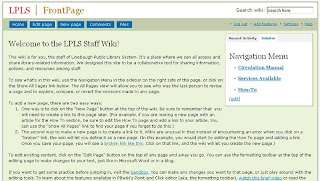
Discovery ExerciseYou can find the LPLS Staff Wiki at
lpls.pbwiki.com. We've started the wiki with 3 sections:
- Circulation Manual - This section will include articles from the Circulation Manual, policies and practices and instructions on all things circ.
- Services Available - This section will be a list of all the services and resources available at any LPLS branch.
- How To - This section will include miscellaneous how-to articles and branch-specific instructions on how to accomplish various tasks.
The goal is to create a comprehensive
and searchable information source for LPLS staff that can be accessed from any computer. We may add other sections at a later date, including the Reference Manual (currently under construction). Other ideas could include a section on reader's advisory, a section on forms (containing instructions on how to complete the forms, with the form itself attached), etc.
For this exercise, your goal is to post 1 or more articles to one of these 3 sections. Because this wiki contains privileged information, you will need a password to access it; check your email for that password. You'll be asked to enter your name and email address; that's so we can keep track of who made which additions and edits to pages within the wiki.
If you want to get some practice before uploading your page, visit the
Sandbox. ("Sandbox" is the term that wikis often use to describe the area of a website that should be used for pure play.) You can make any changes you want to that page, or just play around with the editing tools.
Ready to get your feet wet? Your choices for this exercise are:
- post 1 long article from the Circulation Manual (1/2 page or longer)
- post 2 short articles from the Circulation Manual (less than 1/2 page)
- post 1 article to the How To section
- post the Services Available list (the entire section should be 1 wiki page)
You can find the Circulation Manual on the server at Everyone/Circulation/Circulation Manual. You'll see several "chapters" listed. Within each of these documents there will be several sections, each with a bold title. Each of these sections should be entered as a separate article on a separate page within the wiki.
We've already created the separate "chapters" and article lists for the Circulation Manual within the wiki. To add an article:
- From the front page, click the link for the Circulation Manual (in the Sidebar Navigation Menu), then click on the name of the section where your article will appear. (ex: Holds)
- Click the "Edit Page" button.
- Highlight the name of the article you plan to add and click “Link” on the menu bar. Check the defaults:
- Link to wiki page = new page
- New page name = your article name
- Link text = your article name
- Click OK. Then click Save. You’ll be taken back to the normal page view. The text for which you just created a link should now be in blue with a red-dashed underline.
- Click on the link for your article. Check “No Template” and click Create New Page.
- Now you’re ready to paste in the text for your article. As much as possible, please keep the formatting the same (ex: bold & italic text).
- For increased on-screen readability, please hit enter at the end of each list item (to put a blank line between each item in the list).
- Anywhere there is a reference to a section title (ex: see Overdues for more information), create a link to that section. (We will create links between articles after all the articles have been uploaded.)
- Highlight the text and click the Link button.
- Under "Link to wiki page" select the name of the page you want to link to, then click OK.
- Be sure to click Save when you're finished editing your page.
- Here's an example of an article that's already been created: Checking in Materials. (Note that you will need to be logged in to the wiki before you can access this page.)
Or... You can add something to the How To section. We have listed several suggested articles, many of which we already have typed-up instructions for. You can find some of these within Everyone/Circulation/Circulation Manual or Everyone/Circulation/Smyrna/Instructions. Copy and paste, following the directions above. Or you can retype instructions that are posted in your department but are not saved on the server. Or you can write up new instructions.
Once you've added something to the wiki, create an entry in your blog with a link to the page(s) you created. Try searching for topics in the wiki and see what results you get. Then, share your thoughts on this project: How useful do you think this wiki will be to you? What other topics/sections would you like to see added to the wiki? What other ways could our library system use wikis?
Discover MoreOur goal is to post the entire Circulation Manual to the wiki site. If you do the math, you'll see that we have more articles than we do staff participating in the Learning 2.0 program. So your assignment, should you choose to accept it, is:
- Post additional articles.
- Edit already posted articles. Fix mistakes, add screenshots or other images, add links to other articles, add a scenario / example, etc.
- Most importantly: Recruit your non-Learning 2.0 co-workers to get involved and contribute to the wiki.